iPC OSx86 10.5.6 Universal

iPC OSx86 10.5.6 Universal READ ME FIRST!!!
~~~~~~~~~~~~~~~~~~~~~~~~~~~~~~~~~~~~~~~~


ISO INFO


ISO Size on Disk: 4.3GB
DVD Base System: Mac OS X 10.5.4 9E25 Retail
Installed OS: Mac OS X 10.5.6 with AppleDecrypt.kext and Disabler.kext (every install)
Languages Included: Japanese, German, French, Spanish, Italian, Dutch, Danish, Finnish, Korean, Norwegian, Russian, Swedish, Brazilian Portuguese, Simplified Chinese, Traditional Chinese, Portuguese, Polish
Items removed from DVD for Single Layer Slimming: Boot Camp (doesn’t work on PCs), AdditionalSpeechVoices, Printer Drivers
Updates Included: Mac OS X 10.5.6 Combo Update, Java for Mac OS X 10.5 Update 2, Remote Desktop Client 3.2.2
DVD Bootloader: Chameleon 1.0.11
Default installed bootloader: Chameleon 1.0.12 PC_EFI v9
DVD Boot Kernel: Voodoo Kernel 9.5.0 Final Release
MD5 Hash of iPC OSx86 10.5.6 Universal PPF5 (Final).iso:  9ceb2e8daaa182a1071a337ad9b81e3f
This is the same as iPC Public Beta patched to PPF5!


IMPORTANT NOTES


– Choose only what your system has and nothing else
– DO NOT select more than one driver that installs the same kexts! For example, do not select 2 SMBIOS kexts and do not select 2 AppleHDA audio drivers, etc. This will in many cases cause the install to fail
– If you get “Still waiting for root device” then make sure you install a chipset driver
– If you kernel panic on startup then try doing a bare install with only the essentials (no extra drivers)
– If you get a kernel panic screen and want to see what caused it, please boot in verbose mode (-v boot flag at the F8 boot prompt)
– Default bootloader installed is PC_EFI v9, other bootloaders are available under “Alternate Bootloaders”
– Default kernel installed is 9.6.0 Vanilla kernel
– If you are on an AMD or SSE2 System you MUST choose the Voodoo 9.5.0 kernel under Kernels.
– Voodoo kernel has a built in opt-code patcher so no binary patching is required
– On the first boot make sure to boot with the -f boot flag! Do this to make sure that all installed kexts are loaded properly. It is only required once.
– If you installed the Chameleon with Boot Image support bootloader, and you want to activate the iPC OSx86 boot image, then boot your system and run the following command in Terminal: sudo /BootPicture/SetupBootPicture 1024 768
– If your system’s sound does not work even after installing the proper sound drivers there may be an issue with the System Preferences. Go to System Preferences >> Sound >> Output >> and make sure that “Internal Speakers” is chosen and not Headphones or something else
– If you are using an NVIDIA video card older than the 6xxx series (e.g. FX5500), you may not be able to boot with an injector installed (-v will show the boot process hang after the injector probes the card). You will then need to install the “Legacy GeForce” package to get video working, this contains working kexts for these cards from 10.5.5. Even then, though, there may be graphics glitches (issues with older cards).
– DO NOT install the iPC OSx86 Base System over an existing Base System! This may cause the install to fail while installing boot.efi. Its always best to do a fresh install


CREDITS


To the iPC Team and to these people:


mercurysquad and the Voodoo Team, netkas, modbin, StageXNU team, zef and the Chameleon team, BuildSmart, MacLovin, Bronya, JaS, Gotoh, aquamac, DuNE, MeDevil, Taruga, stickpin, cyclonefr, DaemonES, iNoob, javalui, Chun Nan, Superhai, fassl, mackerintel, AnV, mac.nub, Steven Lin, inside, delish, lastExile, ToH, eno, Oxtie, and anyone else who I haven’t mentioned!


User image

ssh, ftp 접속지연 해결하기

아무 이상이 없던 회사서버에 ssh 및 ftp 접속시 초기 지연현상이 생겼다. 5초 정도 딜레이후에
화면이 뜬다. IDC에 문의를 해놓은 상태지만 일단 검색을 해보니
리버스 도메인 설정을 하면 된다고 하는데 이건 isp에 직접 신청을 해야했다.

일단 ssh의 경우에는 sshd_config 파일에서 useDNS no 로 설정하면 딜레이가 없어졌다.

FTP는 임시로 접속ip를 /etc/hosts 에 등록하면 지연을 줄일 수 있다.

[펌] 리눅스에서 오라클 rpm 설치 – PHP 연동 추가

출처 http://newgifted.tistory.com/entry/Oracle-10g-Express-%EC%84%A4%EC%B9%98%EB%A6%AC%EB%88%85%EC%8A%A4

오라클을 깔기전에 최소사양을 만족 하는지 확인합니다.

최소 사양은 아래와 같습니다.


Oracle 10g Express최소사양

RAM   256MB(권장 512MB)

Disk space  1.5GByte

Packages   glibc – 2.3.2
  libaio – 0.3.96

Swap Space 0~256MB (RAM의 3배 이상)
  256~512MB (RAM의 2배 이상)
  512MB 이상 (1024GB 이상)

위 사양을 만족 하지 않으면 설치 자체가 불가능 합니다.

만약 설치중 glibc나 libaio패키지 설치를 요구하면 아래와 같이 설치하시면 됩니다.


yum install glibc
yum install libaio


또는 직접 다운 받으신후 rpm -Uvh ~~~.rpm을 통해 설치 하셔도됩니다.

우선 오라클 홈페이지에서 Oracle 10g Express 를 받은 후

root계정으로 아래 명령어를 입력하시면 설치가 진행됩니다.


[root@localhost 신영재]# rpm -Uvh oracle-xe-univ-10.2.0.1-1.0.i386.rpm
준비 중…               ########################################### [100%]
   1:oracle-xe-univ         ########################################### [100%]
Executing Post-install steps…
You must run ‘/etc/init.d/oracle-xe configure’ as the root user to
configure the database.


설치가 완료된후 데이타 베이스 설정을 해야 됩니다.

아래와 같이 입력하시면 설정을 할 수 있습니다. 설정이 완료된후 언제라도 다시 설정을 바꾸고 싶다면 똑같이 입력 하시면 됩니다.


[root@localhost 신영재]# /etc/init.d/oracle-xe configure


Oracle Database 10g Express Edition Configuration
————————————————-
This will configure on-boot properties of Oracle Database 10g Express
Edition.  The following questions will determine whether the database should
be starting upon system boot, the ports it will use, and the passwords that
will be used for database accounts.  Press <Enter> to accept the defaults.
Ctrl-C will abort.


Specify the HTTP port that will be used for Oracle Application Express [8080]:HTTP를 통해 편리하게 데이터 베이스를 관리하기 위해 사용할 http포트를 지정합니다. 톰캣 서버와 포트가 같으므로 톰캣 서버를 사용하신다면 다른 포트를 이용하기 위해 다른 포트 번호를 입력 하십시요.


Specify a port that will be used for the database listener [1521]: 다른 서버에어서 DB서버에 접근하기 위한 포트입니다.


Specify a password to be used for database accounts.  Note that the same
password will be used for SYS and SYSTEM.  Oracle recommends the use of
different passwords for each database account.  This can be done after
initial configuration: 암호를 입력 합니다. 이 암호로 SYS, SYSTEM유저로 로그인 가능합니다.
Confirm the password:


Do you want Oracle Database 10g Express Edition to be started on boot (y/n) [y]: 부팅후 자동으로 오라클 DB를 실행할지 여부입니다.
이제 잠시기다리시면.. 설정이 완료됩니다.
Starting Oracle Net Listener…Done
Configuring Database…Done
Starting Oracle Database 10g Express Edition Instance…Done
Installation Completed Successfully.
To access the Database Home Page go to “http://127.0.0.1:8080/apex
[root@localhost 신영재]#


다음으로 오라클 환경변서 설정이 필요합니다. 다음 디렉토리로 이동합니다.


[root@localhost 10.2.0]# cd /usr/lib/oracle/xe/app/oracle/product/10.2.0/server/bin


oracle_env.sh또는 oracle_env.csh스크립트를 실행합니다. 부팅시 계속 해서 자동으로 실행하고 자 하신다면, .bash_profile 또는 .bash_rc에 명령을 넣어 주시면 됩니다.


[root@localhost bin]# . ./oracle_env.sh


이제 설치가 완료되었습니다. 아래와 같이 입력하면 DB에 접근 가능합니다. 또는 웹브라우져에서 http://127.0.0.1:8080/apex로 접근하면 아래와 같은 GUI환경을 볼 수 있습니다.


[root@localhost ~]# sqlplus


SQL*Plus: Release 10.2.0.1.0 – Production on 목 1월 25 12:51:05 2007


Copyright (c) 1982, 2005, Oracle.  All rights reserved.


사용자명 입력:


웅파 추가 (2009. 2. 10)~~~

위 부분은 리눅스에서 rpm으로 오라클 셋팅, 설치하는 부분입니다.
아래는 php와 연동부분입니다.
예전보다 연동은 무척 간단해졌습니다.

팁 하나

==================================================================
Oracle Database 10g Express Edition Release 10.2.0.1.0 – Production
SQL> EXEC DBMS_XDB.SETLISTENERLOCALACCESS(FALSE); <= 이거 명령어다.

PL/SQL 처리가 정상적으로 완료되었습니다.

SQL>
===================================================================

–> 외부에서 아이피:8080/apex 로 접속이 가능해집니다. 설정후엔 FALSE 대신 TRUE로 바꿔주면 됩니다.

난 centos5.2에 설치했는데 php-devel이 설치 안되어있어서 phpize를 사용할 수 없었다.
그래서 yum install php-devel 후
yum install php-pear 까지 설치한후에
pecl install oci8
그리고 php.ini에 extention=oci8.so 만 추가해주고 아파치 재시작 하면 연동 끝
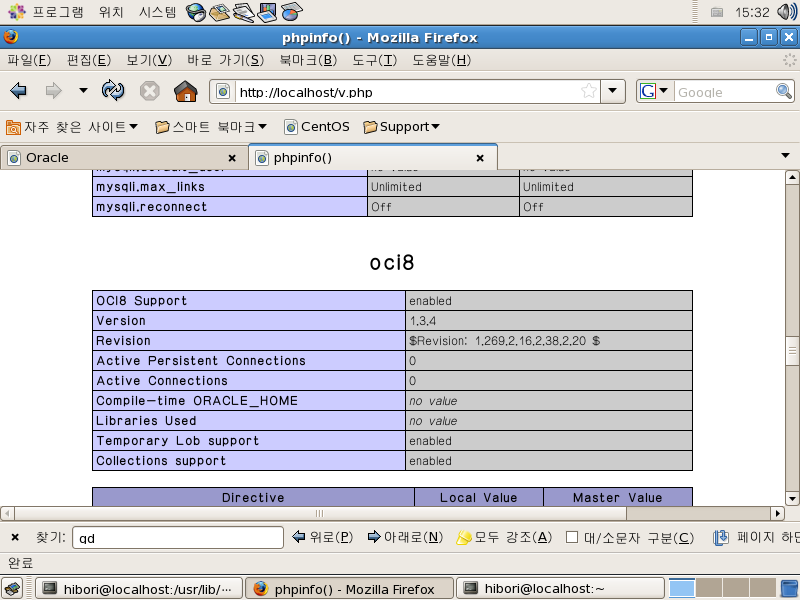
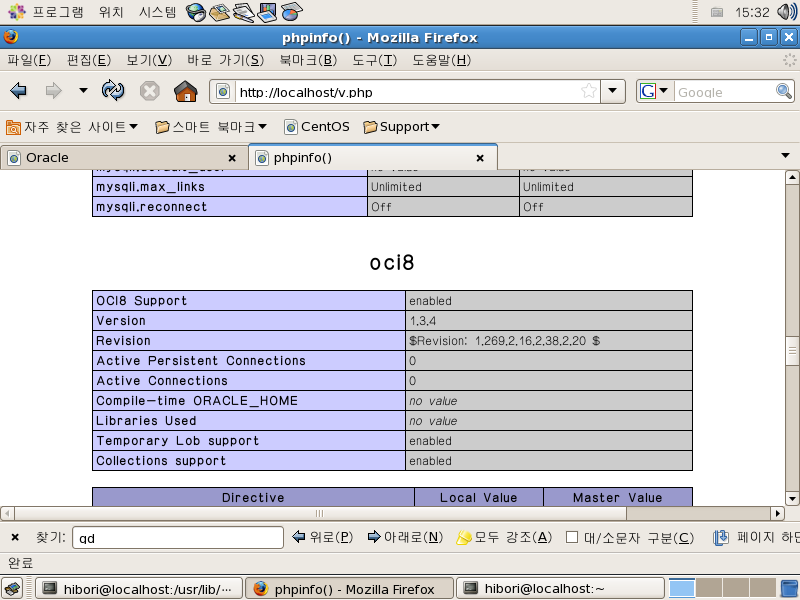
phpinfo(); 함수로 확인해 보니 oci8 이라고 항목이 추가됐다.

User image

mysql과 oracle 둘다 이상없이 작동.

쑥쑥 크는 콩

파란에서 이벤트로 글자가 새겨진 콩을 받았다. (원하는 문구를 새길 수 있다)
(상품은 무료이고 택배비만 부담)

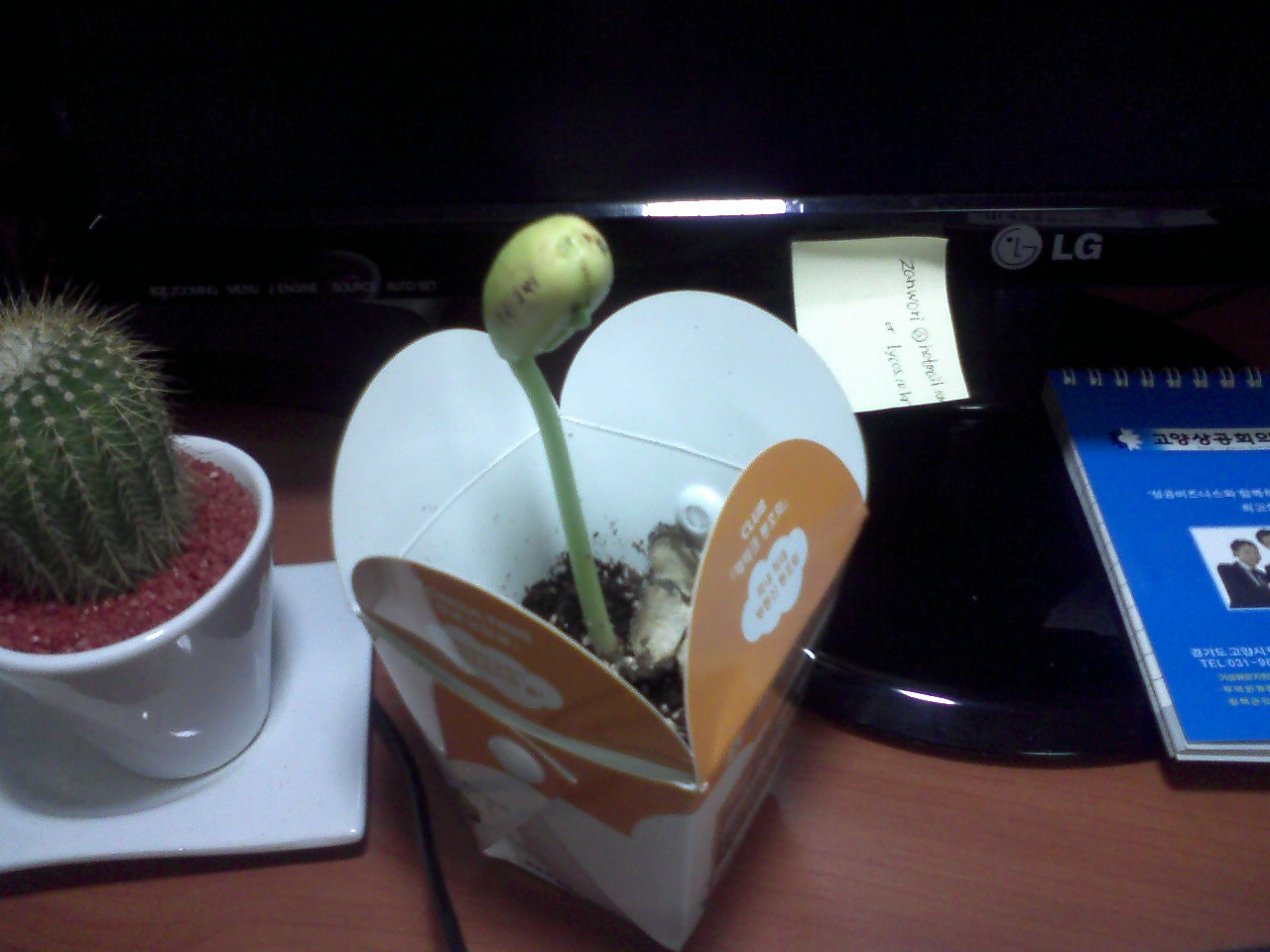
화분겸 상자안에 설명서 1장과 2cm 쯤 되는 콩 한알(건강! 대박! 이라고 새겨진..)이 들어있었다.
설명서 대로 물 붓고 2cm 깊이에 콩 심고는 설 연휴에 돌입했다.

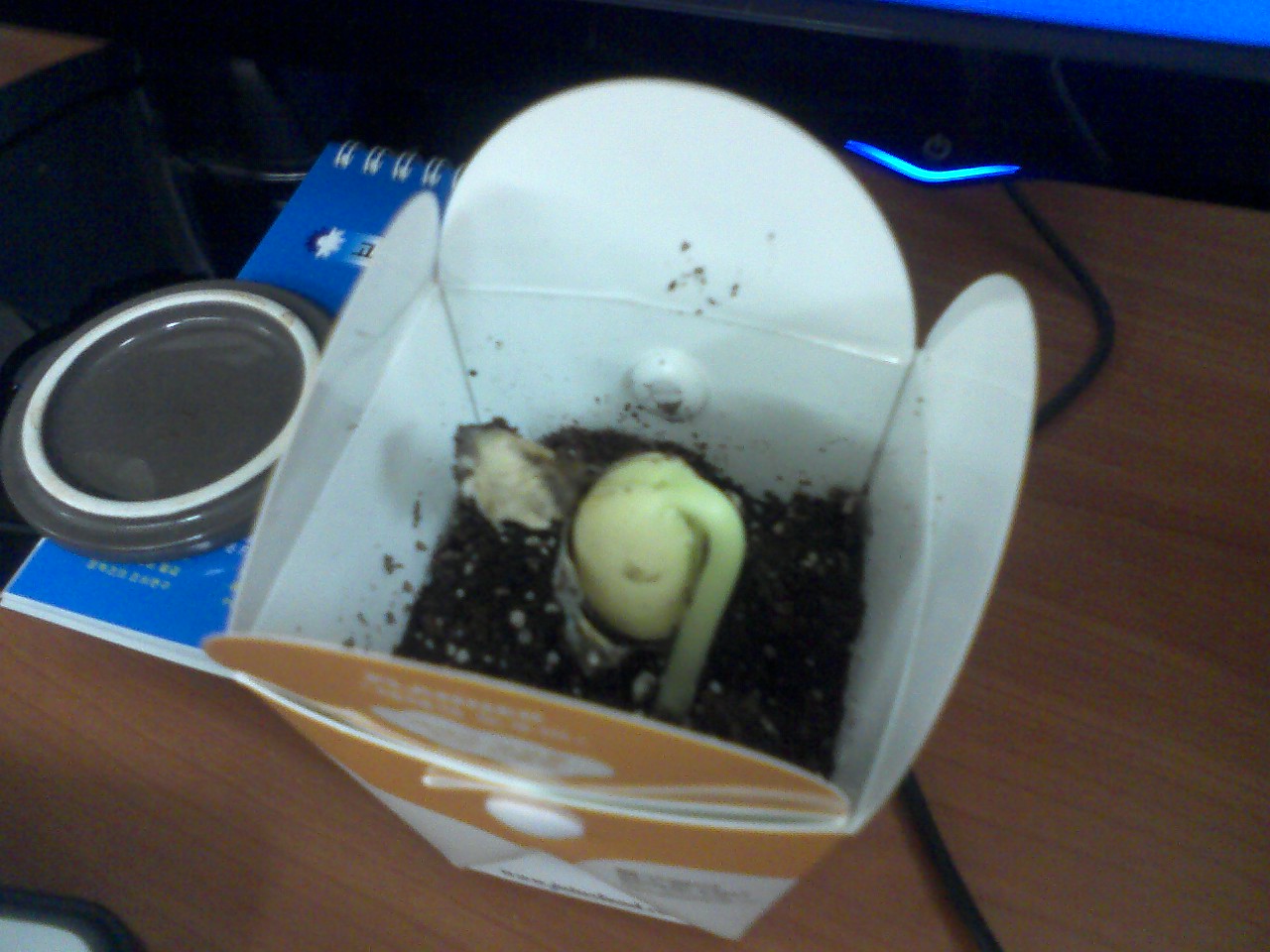
설 연휴가 끝나고 6일만에 출근해보니 콩이 머리를 살짝 보여줬다. ^^
(폰카가 구려서 화질도 무지 구림.. LG-LB2800)

1월 29일

User image
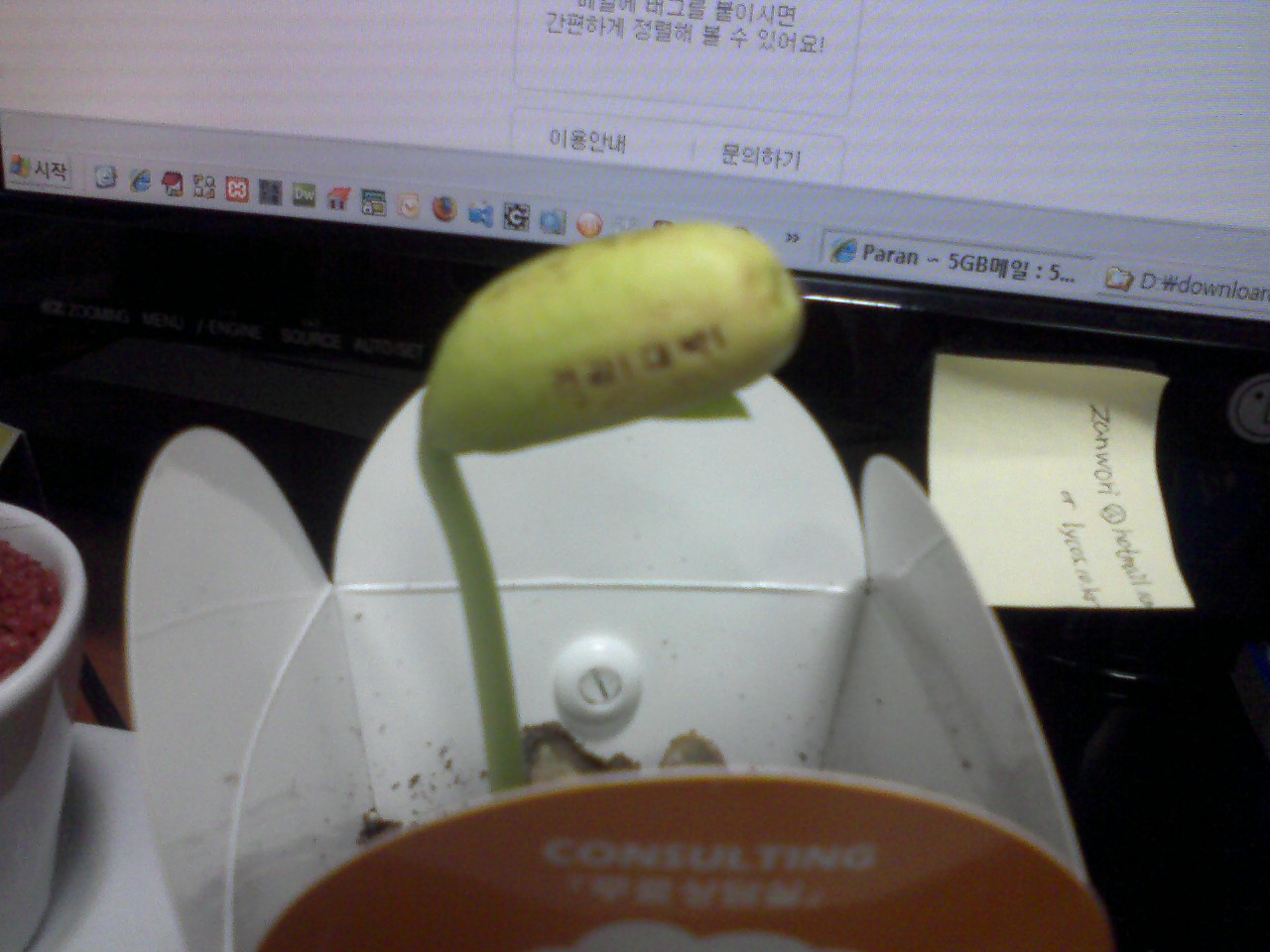
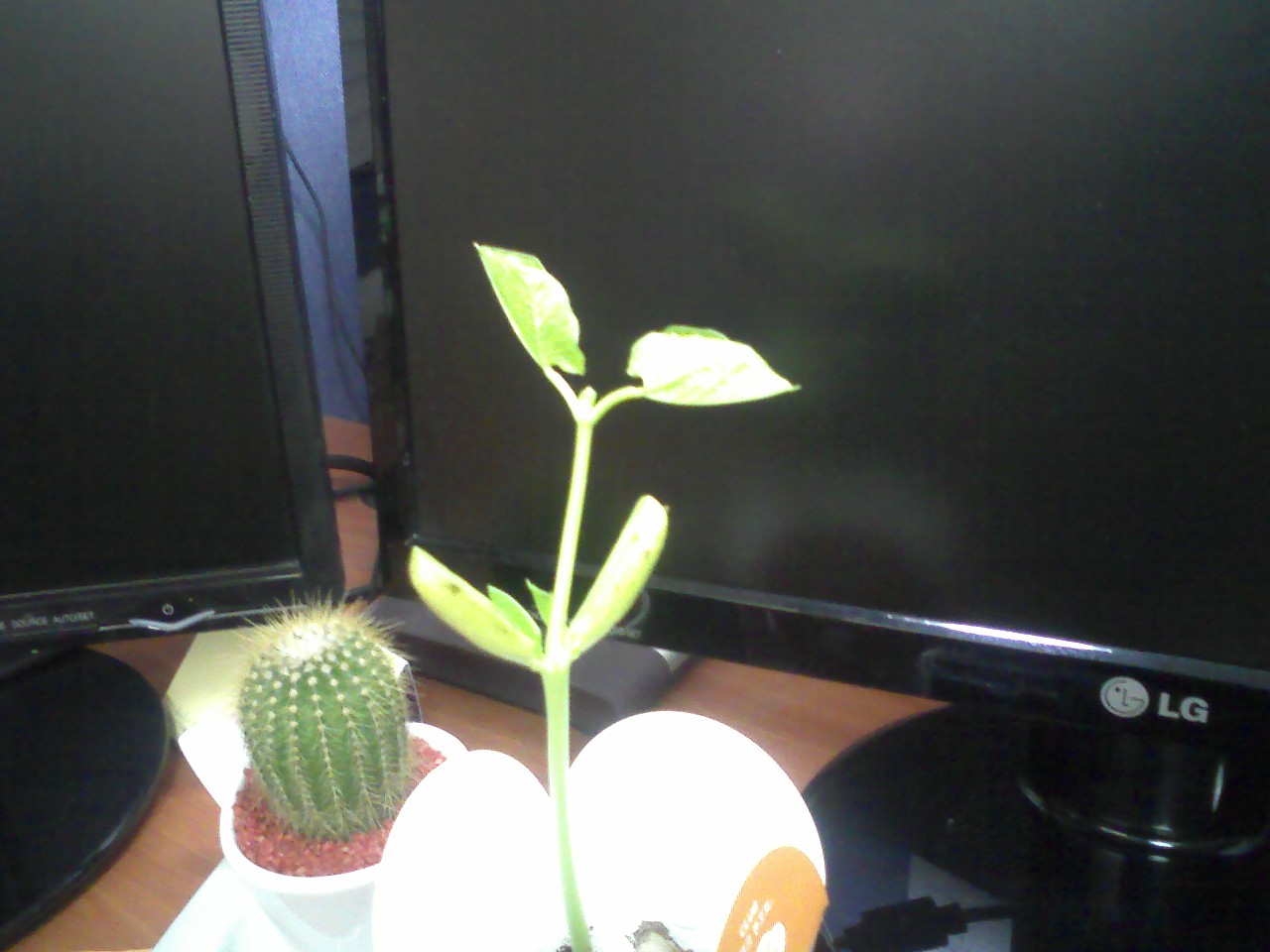
1월 30일 (역시 구린 화질. 글자가 제대로 안보이네.) 하루 사이에 3cm정도 자랐다.
User imageUser image
2월 2일 이틀 또 쉬고 출근했더니.. 이틀전보다 8cm 이상 자랐다. 놀람의 연속..User image
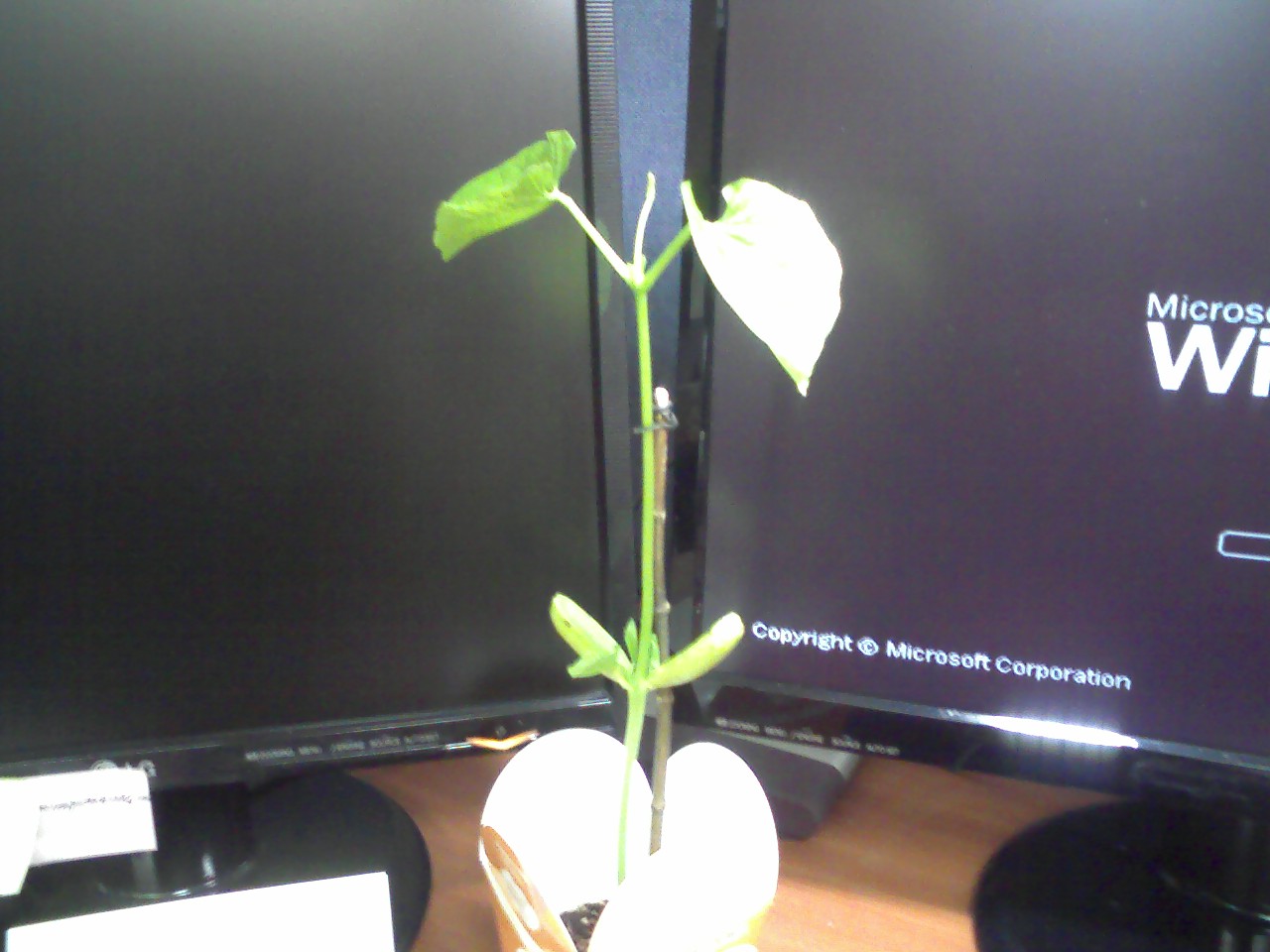
2월 4일 이제는 지지대를 설치해줬다. 이틀전보다 1.5배 이상 자란듯..
User image
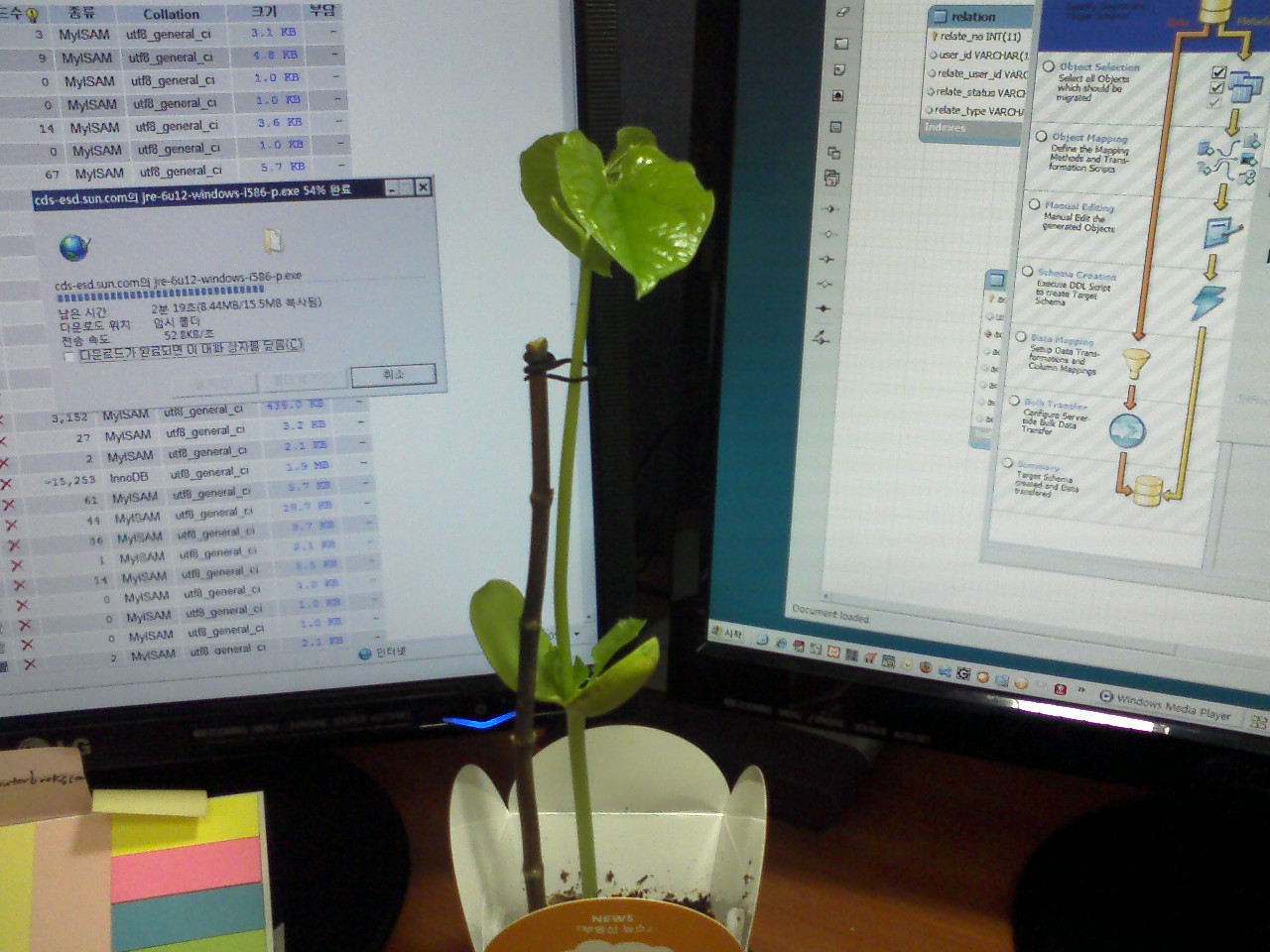
2월 5일 키는 조금 자랐지만 맨 위에 덩굴줄기가 나왔다. 이 넘이 줄이나 나무가지를 타고 올라갈 넘이다.
User image
2월 6일 점점 자라는 덩굴줄기 (스탠드 밑에서 옆으로 옮겨놨더니 좀 덜 자란다)
User image
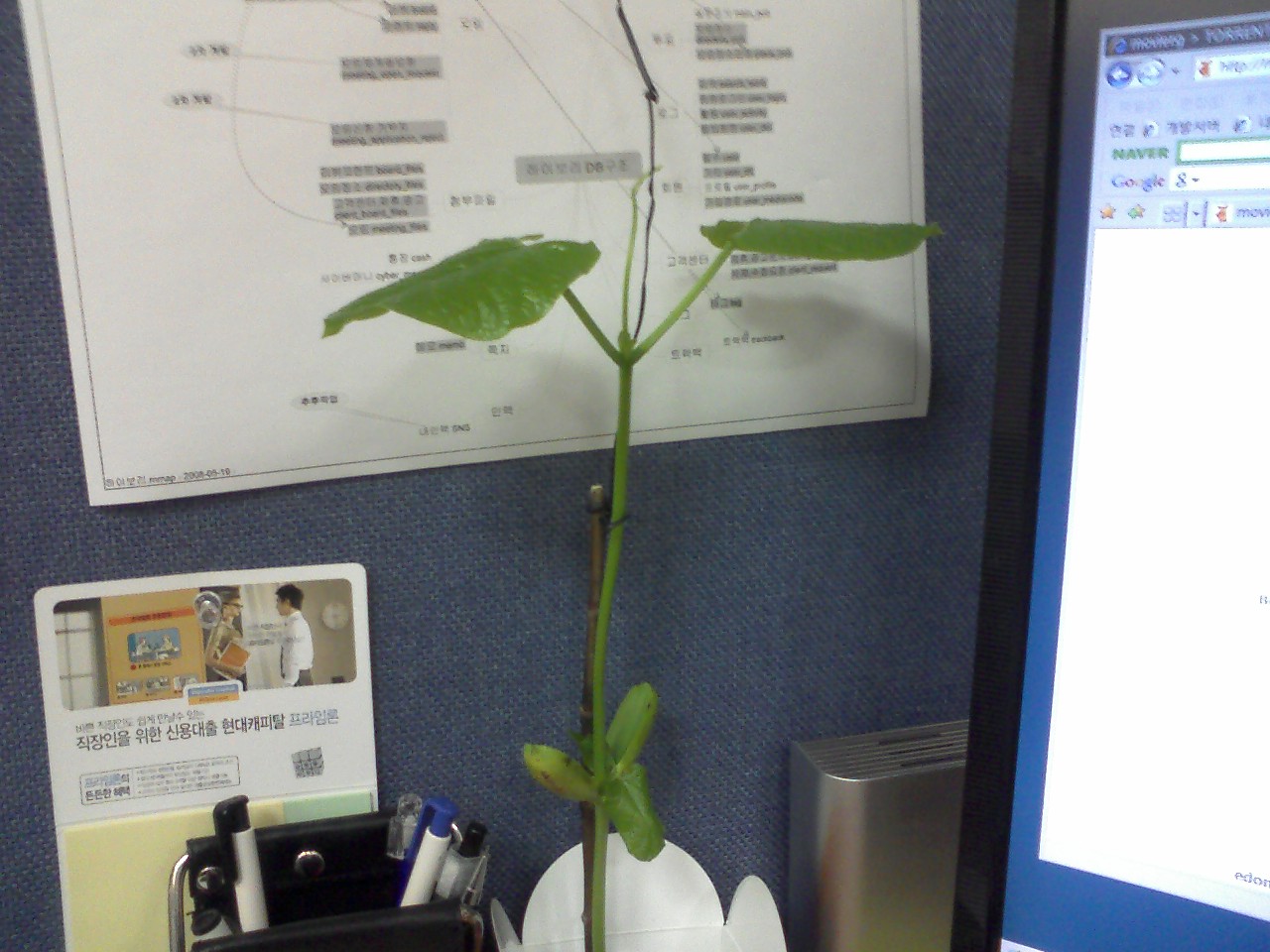
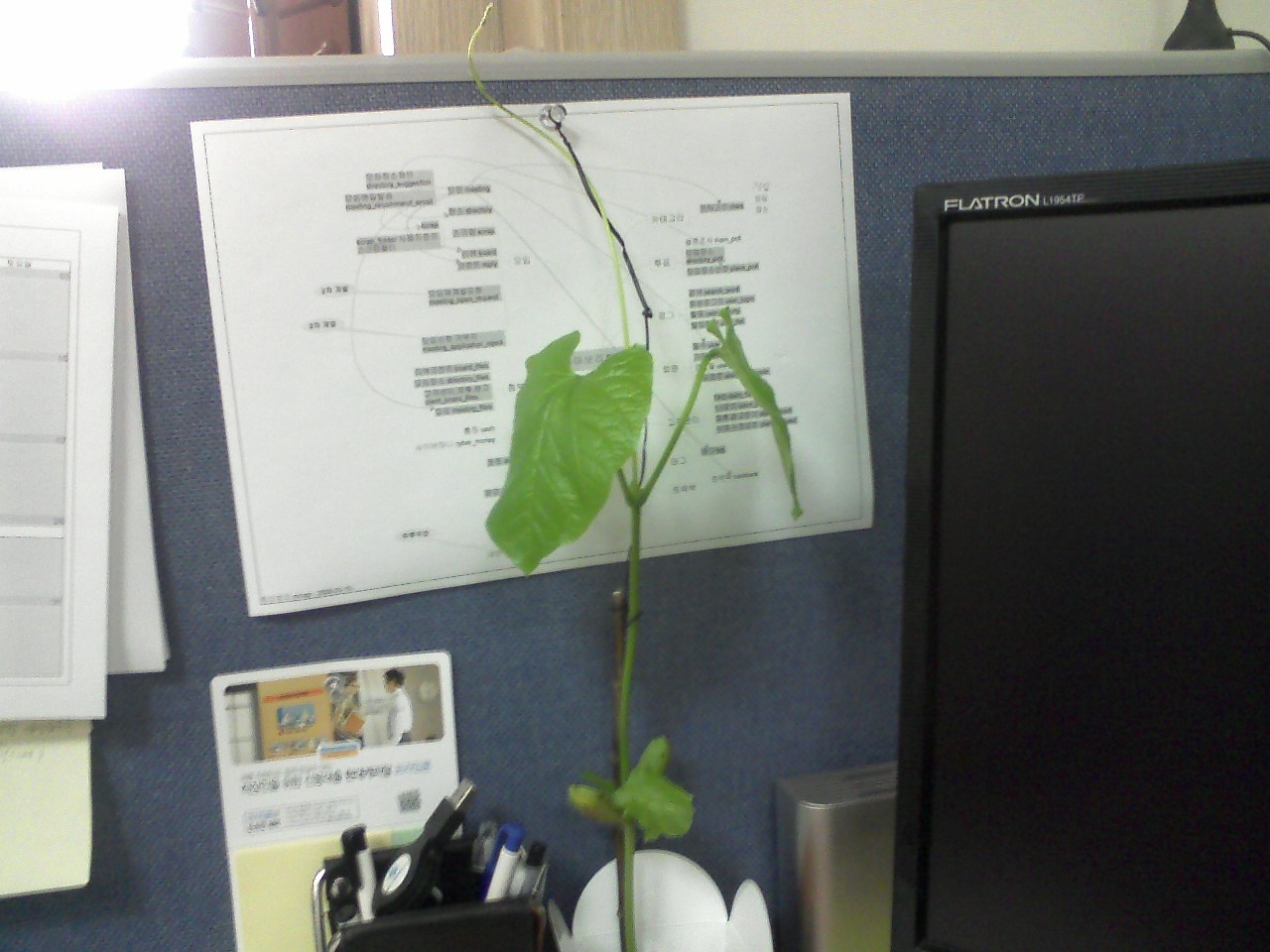
2월 9일 3일만에 또 훌쩍 커버렸다. 재크의 콩나무닷~~! 잎도 훨씬 커지고 타고 올라가라고 해준 줄도 마다하고
           혼자 크고 있다.
User image
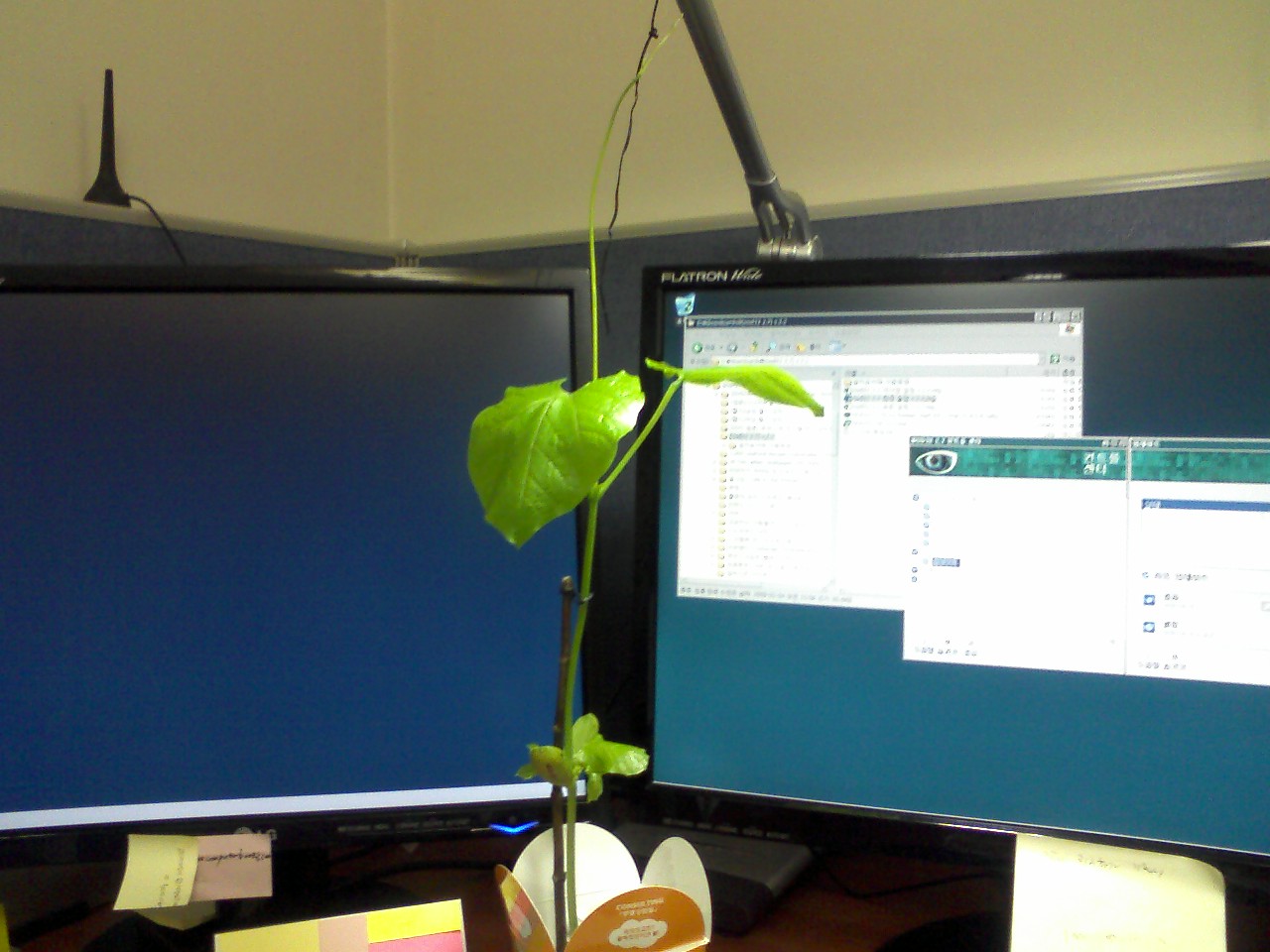
그래서 스탠드에 줄 메달고 스탠드 밑으로 옮겨줬다. 어느새 모니터를 훌쩍 넘어 버린 키.
User image
이제 매일매일 크는 콩나무의 사진을 계속 포스팅하면서 관찰일기를 작성해야겠다.
집에서 키우면서 웅휘한테 보여주면 좋은데 너무 커버려서 대중교통으로는 이동이 불가능해졌다.
좀 있으면 화분도 큰걸로 옮기고 흙도 더 넣어줘야 할텐데..
휴일에 차 가지고 어디 갈때 혹 사무실 지날일 있으면 그때 집으로 가져가야겠다.